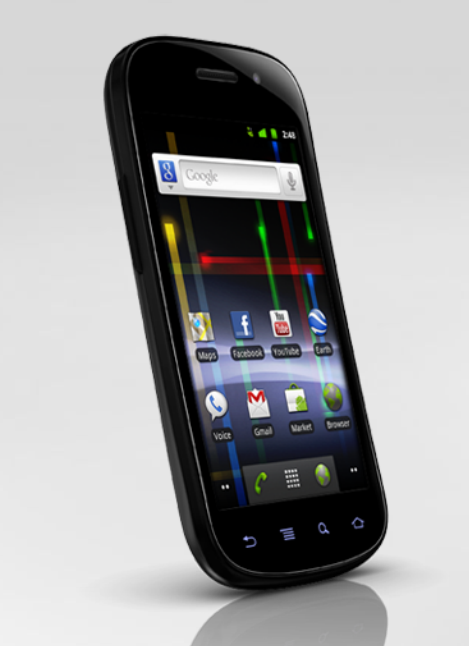
The Samsung Nexus S, the Google Phone running Android version 2.3 (Gingerbread) from Sprint, may well be the perfect device for BlackBerry refugees and others who have resisted the iPhone craze -- some iPhone owners might even give it a try.
Since the Nexus was designed to serve as a developer's device, it doesn't have all of the extra carrier-specific proprietary apps installed. In this way, the phone is more like the BlackBerry than the iPhone. The Nexus has no pre-installed NASCAR racing or NFL highlights, and Google handles the navigation (Google Maps with Navigation in Beta) rather than Sprint.
With the Nexus, you no longer a need to carry another device with you to access the internet. The phone's built in Wi-Fi hotspot can support up to six devices and direct USB tethering -- the USB interconnect also serves as a battery charger. While other phones from Sprint require an additional service fee for the wireless hub, the Nexus connection comes ready for action at no extra charge (although I'm not sure if this will continue). I have been very happy with my Sierra OverDrive Mobile Hotspot (5 ports, also by Sprint), but now I can always have internet access without carrying around yet another device and charger. BLACKBERRY DEFECTOR
BlackBerry has been losing market-share in a big way recently, and I suspect I am a classic defector. Although I've been a BlackBerry user for nearly 15 years, I am weary of screen-envy, and since the next version of BlackBerry OS for the latest BlackBerry device won't support my current device, I'm done with it. There's not a chance I'll be interested in their PlayBook tablet device either. If your PlayBook is separated from your BlackBerry phone, you won't be able to access your e-mail on the tablet. It seems like Research In Motion is seriously missing the boat.
While I'm on the topic of e-mail, Android and iOS do not require special server software, such as BlackBerry Enterprise Server. Without BES, the best you'll get from your Microsoft Exchange Server on the BlackBerry is e-mail, and you are forced to sync directly via USB or Bluetooth to your desktop Outlook to update your calendar and contacts. BES is another expense that can be avoided by ditching the BlackBerry. With the Nexus, you can push your Outlook updates, which means instant and constant updates. Or, if you wish to conserve battery power, you may choose to have it check for updates periodically, with options ranging from 5 minutes to one hour to not at all. I have mine set to push, so I don't have delays in receiving e-mail messages. That doesn't really seem to cause a major battery draw.
The voice commands on the Nexus are far more reliable than with the BlackBerry. I would frequently get several wrong choices when trying to call one of my contacts. The Nexus accuracy has been spot-on, which brings me to an even more interesting point: dictating an e-mail is astoundingly accurate. In a recent e-mail I drafted, only one word was interpreted incorrectly -- it entered "soul" instead of "sole." Hardly a serious issue, but you'd certainly want to proof before sending. You can enable Personal Recognition, which will "learn" your speech characteristics and improve accuracy. I also found that the Google Speech Recognition attempts to determine a word, based on context. When I spoke the words, "This e-mail message is for the sole use of the intended recipient," the recognition program applied the word "soul." When I spoke "I am the sole owner," the recognition program got it right.
One thing that kept me hooked on the BlackBerry for years was the keypad. The tactile feel of the QWERTY board is what differentiated it from the average phone. Although converting to the Nexus keyboard will take you a bit of time to get used to (it took me about three days), once you get the hang of it, the Nexus Android screen keypad is really nice. Once you begin to type, a type-ahead word list immediately forms at the top of the keypad, which narrows the available options as you type each letter. So, instead of typing all the characters, I typed in two or three letters and selected the appropriate word. Again, this takes a little getting used to (from a former BlackBerry user's perspective), but once you try it, you will wonder why you waited so long.
If you are converting from a BlackBerry, I would recommend changing devices on a day when you have the time to get used to it. Although things came pretty naturally to me, I initially had some issues getting connected with our Exchange server. It was a configuration issue with our server, not the phone, but I couldn't get e-mail for several hours -- until this was resolved by our IT staff. This could spell disaster if you are heading out of town or in trial. While iPhone or other Android device users will likely feel at home with the Nexus, it's still a good idea to make sure the phone does what you need it to do before you really need to do it.
TOP FEATURES
As an iPad user, I gave some serious thought to the iPhone, which would mean that many of my apps would also work on the iPhone. Although I have to start over with a new Android app collection, I don't think that I will use my phone like an iPad or other tablet no matter which one I chose. But I wanted a phone that would relieve my screen envy of other phones. And the Nexus's four-inch 480 x 800 pixel Super AMOLED display would certainly do. I also considered purchasing the HTC Evo, but the low battery life kept me from it. And after trying the HTC Evo, the Nexus feels far more comfortable in the hand: It is lighter, thinner, and slightly curved for a more ergonomic fit. In addition the Nexus has dedicated, touch-sensitive keys to return to a previous screen, draw the main menu, search, and return to the home screen. There is also a proximity and sensor, a digital compass, and integrated Assisted GPS.
I have found the best overall results with the Sprint network. I've tried others, and especially with their 4G speeds (which they've had for about a year now, in some markets), which I often use for remote internet access in court. After getting accustomed to the long battery life of the BlackBerry, four to six hours of power without a recharge is unacceptable. When I'm in trial or on the road, I cannot afford to miss a call or e-mail message (well, maybe not a call in court). Although I'm not sure how long the Nexus battery will hold up in all possible conditions, I've heard that the phone "learns" your usage habits and can improve over time. I found that to be true, but there are several tricks to improve battery life such as disabling services you don't regularly use, e.g., Wi-Fi and Bluetooth.
The Nexus includes an advanced power widget that gives you quick access to a few of the phone's services with the highest power usage, including wireless access, Bluetooth, and screen brightness. Turning things off when you're not using them can have a significant effect on battery life.
ONE DAY AT A TIME
After my first full day with the Nexus S, I checked my power widget drain sources and saw that the display accounted for over 70 percent of power use. I had opted for the second brightest setting, and that may have been a factor in getting around 3.5 hours of battery use before getting a warning that I was below 20 percent battery life -- perhaps my Angry Birds adventures should be left on the iPad. New toy -- what can I say. I now have the display setting on "auto," in hopes that this will be one step in reducing power consumption.
The next day I used the Nexus more like I used my BlackBerry, for phone calls and e-mails, but also did some note-taking with EverNote and used the Wi-Fi hotspot for my laptop. The auto setting for screen brightness reduced screen power use to just 41 percent. The next highest power draw came from voice calls: 25 percent. This time, after 6 hours of use, I still had 42 percent of battery life remaining, which is more in line with the BlackBerry and certainly an improvement over my first day of approximately four hours of battery use.
The iPhone battery reportedly lasts under 6 hours with "normal" use, which is better than the HTC Evo, but not great. As a mobile professional, you don't always have time to plug a phone into your car or an electrical outlet. So when you are out of the office all day, you may want to try to keep use to a minimum. Granted, that's hard to do, especially when you have so many cool apps and things to mess with. You could carry an extra battery or two, but that's not an ideal solution.
On my third day with the Nexus, I made a few calls (34 minutes total) and experimented with a QR code app, but used the phone less than previous days (I was at my computer all day, so didn't have to check and send e-mail). After 10.5 hours, I still had 52 percent battery life remaining. I was surprised, to say the least. Voice calls accounted for 36 percent power use and power requirements for the display dropped to only 24 percent. The phone is indeed "learning" my habits, but I am also learning how to better use the phone. So if you're going to be out of the office for a while, use the Nexus more like a phone and less like a tablet or netbook (read: not playing Angry Birds). You will get battery life comparable to the BlackBerry. NOTE: The following is a bit more info on usage and battery life of the Nexus S, not included in the original article.
While waiting in the airport to travel from San Francisco to LegalTech in Los Angeles, I had some time to work, so I used the Wi-Fi hotspot to provide internet access for my laptop. Although it worked great, it used enough power to cause the phone to warm up in my pocket. Not that it got hot, but it was noticeably warm to the touch. This day was different in usage, since I had some phone time (with Bluetooth) and also using the Wi-Fi hotspot to feed my laptop. One thing is for sure – I really like not having to look for local wireless networks, compromising security, having to see/hear ads from “free” internet providers before I get access, etc. I also like not having to make sure my Sierra OverDrive is charged and ready to go, power it up, etc.
I intentionally didn’t connect the phone to my laptop, in order to drain it and see how it works under pressure. The phone was on for 9 hours, with 22% remaining, which displays a yellow battery icon. After 10 hours, I was in the red zone, with just 12% remaining. Had I actually been working with it properly, I would have tethered and charged the phone, rather than running the Wi-Fi hotspot.
Another brief note about purchasing at your local Sprint Store: Although after reading my in-depth review, you may feel completely at-ease ordering your Nexus S over the internet, I didn’t have the luxury of any reviews – I actually got my phone a couple of days before the “official” release (hope I didn’t just get anyone in trouble), and thus, no real-life reviews were available. James, the Store Manager, and his crew (during their grand opening) allowed me to try several phones, and the new Galaxy tablet. Being an iPad user, I didn’t care for the smaller size of the Galaxy, but maybe that’s another review for another day.
Here is a chart, showing battery life of the Nexus S, beginning with the very first day I used it. Day | Total Time (hours) | Percentage Remaining | Estimated Battery Life |
1 | 4 | 20 | 5 |
2 | 6 | 42 | 10.3 |
3 | 10.5 | 52 | 21.9 |
4 | 15 | 38 | 24.2 |
5 | 16.25 | 27 | 22.2 |
6 | 14 | 37 | 22.2 |
7 | 15.75 | 5 | 16.6 |
Would I recommend purchasing a Nexus S? Yes. I bought mine at the Sprint Store in Alameda, Calif. I like the opportunity to hold, test, and compare the phone, rather than order online and hope for the best. ::: PRODUCT INFORMATION :::
Product: Nexus S 4G
Manufacturer: Samsung
Price: $199 with two-year Sprint contract, $549 without contract
Operating system: Android 2.3 Gingerbread
Processor: 1GHz Samsung Hummingbird
Memory: Integrated 16GB flash drive (no expansion card slot)
Connectivity: 1xEV-DO CDMA and WiMAX 4G, Bluetooth, Wi-Fi
Display: 4 inch 480×800 pixels Super AMOLED
Camera: 5 megapixel with LED flash (rear); VGA front facing camera
Battery: 1500 mAh lithium-ion battery
Dimensions: 4.88 x 2.48 x 0.44 inches
Weight: 4.62 ounces
Ted Brooks is a trial presentation consultant, author, and speaker, with offices in Los Angeles and San Francisco. E-mail: tbrooks@litigationtech.com. Blog: Court Technology and Trial Presentation blog. Ted Brooks213-798-6608 Los Angeles
415-291-9900 San Francisco
 |
| Trial Consulting Network |